Digital Prize Wheel Kiosk – Rental User Manual
55-inch touchscreen prize wheel | Vertical and horizontal kiosks | Made for Arcade
This guide covers routine operation and campaign setup. Follow the handover instructions for the exact hardware and software supplied with your order.
1. Position the touchscreen kiosk safely
Use the digital prize wheel indoors on a dry, level, stable floor. Keep the screen, base and cables clear of doors, escape routes and the walking aisle. Leave space for the player and anyone waiting. Keep drinks away and do not cover ventilation openings. Children must be supervised; never allow anyone to climb, lean heavily on or pull the kiosk.
The standard upright model is approximately 183.5 cm high, with a 75.5 x 45 cm base. The horizontal kiosk has a different footprint; confirm the supplied model’s dimensions before positioning it. Move the machine using suitable handling equipment and enough people for its weight. Never lift it by the screen, cables or touchscreen edges.
Protected power is required. Connect all MFA equipment through a suitable surge protector to an earthed supply. A normal extension strip is not necessarily a surge protector. Do not daisy-chain adapters or share an overloaded circuit. Ask the venue electrician to resolve unstable or unsuitable power before switching on. A surge protector does not correct an unsafe electrical installation.
Read MFA’s venue-power guidance.
2. Start the machine and choose the correct game version
- Inspect the kiosk and supplied cables before use. If there is damage, stop and contact MFA.
- Connect the protected power supply and use the supplied machine’s power controls. Let Windows finish starting.
- Open the supplied customer prize-wheel shortcut, or wait for the preconfigured game to launch.
- Confirm the right campaign, screen orientation, prize list and sound before admitting players.
Offline customer installation: when the MFA offline package is installed, the game runs locally on the kiosk. Venue internet is not needed to play. Use the supplied launcher rather than opening individual HTML files. A local address beginning with 127.0.0.1 refers to the kiosk itself.
Hosted customer installation: if your supplied customer game uses an online address, confirm its connectivity requirements with MFA before the event. The public online demo requires internet and is for evaluation; it is not the offline customer installation.
3. Play the digital prize wheel
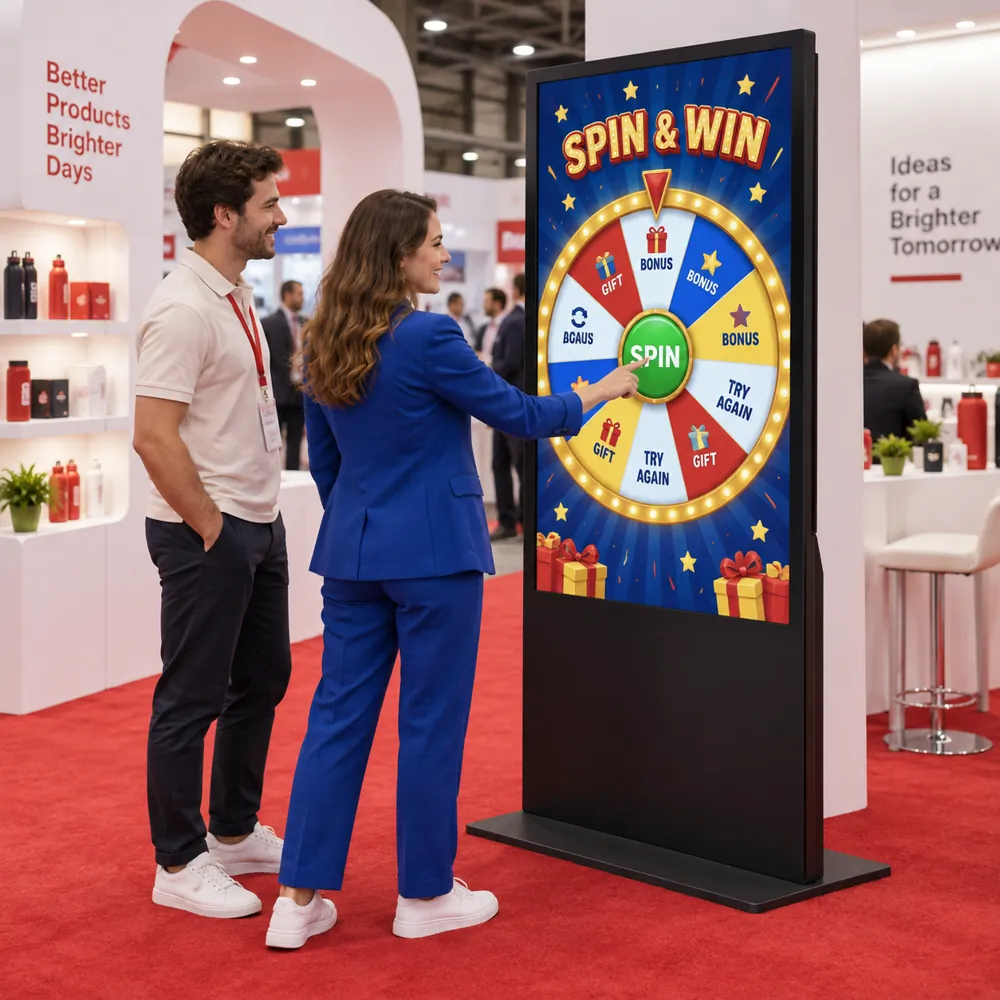
- Touch the on-screen start button. If supplied and configured, an external USB start button may also be used.
- Watch the wheel spin and wait for the result. In start-only mode, additional presses during a spin do not start another round.
- The screen displays the winning prize or losing message. Staff should confirm the result and hand over any physical prize.
- Wait for the result display to clear, or use the configured control to dismiss it, before starting the next player.
With a keyboard connected, Space or Enter operates the game. In start-and-stop mode a second press begins the stopping animation. The game chooses the outcome using the configured probabilities before the spin animation; stopping is an interaction feature, not a timing-skill competition.
4. Open the operator settings
MFA offline touch edition (version 1.1 onwards): press and hold Staff · hold 3s in the top-left corner for three seconds to open settings. A short tap does not open it. Tap a text field or prize name to open the built-in on-screen keyboard. Use letters, Shift, Symbols, Space and backspace; tap in the text to position the cursor, or use Select all to replace it. Tap Apply to commit the field or Cancel to discard that text edit. Sliders, choices, colour swatches and checkboxes work by touch. Choose… and Import open the normal file picker for files on the kiosk or USB.
The keyboard works offline and does not require the Windows touch keyboard. A physical keyboard still works; Esc opens settings, or closes the text editor first when it is open. The settings menu normally closes after 30 seconds without activity. Touching or scrolling resets this timer; it pauses while the built-in text editor is open. The hold gesture is an accidental-access safeguard, not a password or security lock. Supervise the kiosk during events.
Earlier or hosted versions: if there is no Staff control, use a connected keyboard and Esc, or ask MFA to install the offline touch edition. The public online demo is separate; installing a new package does not update a kiosk that is already deployed.
Make changes between players, not during a live round. Test the complete setup after changing prizes, probabilities or screen layout.
| Setting | What the operator can change |
|---|
| General and wheel layout | Title, portrait or landscape orientation, full wheel or a half-wheel at any edge, zoom and position. Align the Windows display orientation with the game layout. |
| Appearance | Background image and overlay, rim, hub, pointer, bulbs and peg colours, lighting effects and an optional centre advert while spinning. |
| Prizes | Prize names, colours, text or uploaded images, font, size, weights and which segments are losing outcomes. Use at least two prizes and a positive weight for each. |
| Win chance | Overall chance of a winning result, when enabled, in addition to relative weights within the winning and losing groups. |
| Button behaviour and kinetics | Start-only or start-and-stop interaction, spin duration, variation, turns and stopping behaviour. |
| Idle, result and sound | Attract behaviour, call-to-action, result messages and duration, confetti, sound enabled and tick/win/lose volumes. |
5. Set prizes and probabilities responsibly
A weight is a relative chance, not a guaranteed number of wins. With overall win chance disabled, a prize’s chance is its weight divided by the sum of all prize weights. For example, weights of 1 and 3 correspond to 25% and 75% over many plays, not an exact sequence of four spins.
If overall win chance is enabled, the game first selects the winning or losing group, then uses weights within that group. Configure both groups when using that mode. The standard game does not automatically count or reserve physical prize stock. Monitor stock and stop or update the campaign before a prize runs out. The event organiser remains responsible for the giveaway rules and fulfilment.
6. Personalise, save and back up a campaign
Upload the campaign background, prize images and centre advert from files on the kiosk. Use clear, compressed images and check that names remain readable at playing distance. For offline use, upload local files; do not depend on images hosted on another website.
On the MFA Windows offline edition, changes save to disk. Wait for the green Campaign saved on this kiosk confirmation before closing or shutting down. If you see NOT SAVED, resolve the error first. A hosted installation may store settings differently; follow its supplied setup instructions.
Use Export config.js to keep a campaign backup. Store it separately, for example on your staff USB drive, and use the admin import control to restore it or load it onto another prepared kiosk. Do not reset to file defaults unless you intend to discard the current settings and have a backup.
7. Test before opening the stand
- Check the right customer branding, prizes, spelling, screen orientation and readable text.
- Play several rounds and test touch input, sound and any external start button.
- Restart the application and confirm that campaign settings are retained.
- For an offline booking, disconnect Wi-Fi and Ethernet, restart the kiosk and test again. Preparing an online page while connected is not an offline test.
- Keep a backup campaign and a staff contact available throughout the event.
8. Troubleshooting
| Problem | What to check |
|---|
| No game after starting Windows | Open the supplied customer shortcut. For the offline package, confirm Microsoft Edge is installed and the complete application folder is present. If it reports that the wheel is already running, close the previous instance first. |
| Game says demo service unavailable | You are using the hosted demo. Open the supplied customer installation or contact MFA for the correct setup. |
| No sound | Touch the screen once, check Windows volume and selected audio output, then check Sound enabled and the game volume controls. |
| Screen responds to a mouse but not touch | Check the touchscreen connection and Windows touch operation. Do not change drivers or unplug internal wiring during an event; contact MFA if touch is not recognised. |
| Layout is rotated or cropped | Check Windows orientation, the game’s portrait/landscape setting, wheel position and zoom. A half-wheel layout intentionally clips part of the circle. |
| Settings do not survive a restart | Use the correct launcher and Windows user. On the offline edition, check save confirmation and available disk space; import your campaign backup if needed. |
| Unexpected prize results | Review weights, lose markers and overall win chance. Short runs are random and need not match the long-run percentage. Stop play if the prize configuration is wrong. |
9. Shut down, clean and transport
End the current round, save the campaign and close the application with the supplied exit method (Alt+F4 on the Windows offline edition). Shut down Windows normally, wait for shutdown, then disconnect power. Do not routinely switch off by pulling the mains plug.
Clean the screen gently with a soft dry microfibre cloth. If needed, use a screen-safe product on the cloth, never sprayed directly into the kiosk. Do not use abrasives or solvents. Keep liquids away from vents and connectors. Protect the display and secure the kiosk in its supplied or approved packaging for transport.
Admin settings: complete operator reference
The names below match the settings menu. Changes affect the live campaign: make them between sessions, export a backup first, and run test spins afterwards. Milliseconds (ms) are thousandths of a second: 1,000 ms = 1 second.
General
| Setting | What it does and how to use it |
|---|
| Title (under wheel) | Your campaign headline on the playing screen. Keep it short enough to read at a distance. Its position also follows the selected wheel layout. |
| Orientation | Choose Landscape (1920 × 1080) or Portrait (1080 × 1920) to match the screen. This changes the game layout; it does not rotate Windows. Set Windows display orientation separately during installation. |
Wheel placement
| Setting | What it does and how to use it |
|---|
| Position | Centre shows a complete wheel. Bottom edge shows its top half; Top edge shows its bottom half; Left edge shows its right half; Right edge shows its left half. The pointer moves to the visible side. These are deliberate crop layouts, not missing artwork. |
| Zoom | Enlarges or reduces the wheel, from 0.60× to 2.20×. Higher values make segments more prominent but can crop the rim or labels. Check the complete playing screen after changing it. |
| Nudge horizontal / Nudge vertical | Moves the wheel left/right or up/down, from −40% to +40%. Use small adjustments to balance the wheel against background artwork. Check that players can still reach the start button. |
Appearance
| Setting | What it does and how to use it |
|---|
| Background overlay (white·image·black) | 0% covers the background in white; 50% shows the image without this overlay; 100% covers it in black. Values between those points lighten or darken the image. Use this to improve contrast behind the wheel and title. |
| Rim colour / Rim accent | Sets the main outer rim and its contrasting accent. These change the wheel surround, not individual prize segments. |
| Hub / button colour | Changes the central hub/start button colour. Choose a colour that is clearly visible against adjacent segments. |
| 3D top-light sheen | Adds a simulated highlight to the wheel for a glossy appearance. Switch off for a flatter graphic style. |
| Show outer bulbs / Bulb colour / Bulb count | Shows or hides the decorative lights, sets their colour, and chooses 12–96 lights around the wheel. These are screen graphics, not physical kiosk lights. More bulbs create a denser illuminated border. |
| Extra pegs per segment (0–2) / Peg colour | Adds up to two extra decorative pegs per segment and sets their colour. Peg spacing also affects pointer/tick activity as the wheel rotates; it does not change prize chances. |
| Background image — Choose… | Opens the file picker to select a local campaign background. Choose a file from the kiosk or a connected USB drive; it is embedded in the campaign. Each image must be no larger than 6 MB. Prepare artwork for the chosen screen orientation and keep key messages clear of the wheel. |
| Show centre advert while spinning / Centre advert image | Enables a centre image during the spin and lets you choose that image. Use a logo or short promotion. Select both the image and the switch to use the feature; it does not replace the background or prize images. |
Prizes & segments
| Setting | What it does and how to use it |
|---|
| Show prizes as | Text shows the prize names on the wheel; Images uses the uploaded prize pictures. Supply a suitable picture for each prize when using Images. Keep meaningful names as well, because the result must identify what the player won. |
| Prize font / Prize font size | Selects Barlow, Inter, Arial, Bebas Neue or Orbitron and a size from 12–90 px for the prize lettering. Long names and many segments require smaller text. Check readability on the actual screen. |
| Prize name | The name of that result, such as Coffee voucher or Try again. Tap the name to edit it with the built-in keyboard in the offline touch edition. Apply commits the new name; Cancel leaves it unchanged. |
| Segment colour | The colour swatch beside a prize changes that wedge. Use alternating colours with clear contrast, and check text against every chosen colour. |
| Weight and displayed percentage | Weight sets relative likelihood, not segment size or an allocated quantity. All weights must be positive. A weight of 20 has twice the likelihood of 10 when compared in the same selection group. The percentage beside the slider is the raw share of all weights; when overall win rate is enabled, this is NOT the final probability. See the worked example below. |
| Lose | Marks the segment as a losing outcome. This controls the losing headline/sound and assigns it to the losing group when overall win rate is enabled. A name such as Try again does not automatically mark the segment as Lose. |
| Image… / Clear | Image… selects the local picture for this prize, up to 6 MB. Clear removes that prize picture without deleting the prize or its name. These controls are separate from the main background and centre advert. |
| + Add prize / × Remove | Adds a new segment or removes the selected segment. The offline edition allows 2–100 prizes. Each segment occupies an equal part of the wheel regardless of weight. For a public event, use far fewer segments if names or images become hard to read. Remove unavailable prizes before resuming play; do not set their weight to zero. |
Win chance
| Setting | What it does and how to use it |
|---|
| Use overall win-rate (win vs lose) | Off: every prize competes using its weight across the whole wheel. On: the game first chooses win or lose, then uses relative weights within that chosen group. Include at least one winning segment and one Lose segment. If either group is absent, the engine falls back to raw weights and cannot deliver the requested win/lose split. |
| Overall win rate | Sets the chance of any winning outcome, from 0–100%, when the switch is enabled and both groups exist. Example: 60% overall win rate, two winning prizes with weights 1 and 3, and one losing segment gives final chances of 15%, 45% and 40%. The raw percentages beside the prize sliders will differ. Random results do not guarantee a fixed number of prizes in a short session. |
Button behaviour
| Setting | What it does and how to use it |
|---|
| Mode — Start only | One press starts and completes the spin automatically. Additional presses during the spin are ignored. This is the simplest choice for unattended play. |
| Mode — Start & stop | The first press starts the wheel; the second asks it to slow to the chosen outcome. Bring-home time controls that slowdown. The player cannot aim at a prize by timing the stop: the weighted outcome is selected before the animation. |
Kinetics
| Setting | What it does and how to use it |
|---|
| Spin length (mean) | Average spin duration, 1,500–24,000 ms (1.5–24 seconds). For example, 6,000 ms is six seconds. Longer spins build suspense but reduce the number of people who can play per hour. In Start only this controls the full spin; Start & stop also depends on the player’s stop press. |
| Spin length variation ± | Adds random variation around the mean, up to 4,000 ms. Zero makes duration consistent. The engine uses a bell-shaped random variation, so the value is a spread rather than a strict minimum/maximum limit. This changes animation timing, not the chance of winning. |
| Spin speed (full turns) | Sets 1–12 full turns within the spin. More turns in the same duration means faster rotation. Adjust together with Spin length: increasing duration without increasing turns makes the wheel slower. |
| Wheel weight / momentum | Changes the shape of the slowdown from light and even to a heavier flywheel feel. It redistributes speed during the animation; it does not change prize probabilities or the selected number of turns. |
| Heavy ramp-up time | Sets how long the wheel takes to accelerate at the beginning, 0–2,500 ms. Zero launches immediately; a higher value gives a visible wind-up. This is part of the spin duration. |
| Bring-home time (start&stop) | Sets the slowdown after the second press in Start & stop, from 900–8,000 ms. A lower value reaches the result sooner; a higher value prolongs suspense. It has no effect in Start only mode. |
| Landing jitter (0=centre) | Moves the final stopping point within the already-selected segment. Zero lands in the centre each time; values up to 0.48 allow near-divider finishes. It changes the appearance of the landing, never which prize wins. About 0.30 is a useful starting point. |
Idle / attract mode
| Setting | What it does and how to use it |
|---|
| Enable attract mode when idle | Enables attention-catching behaviour when the game is waiting. It does not run a real prize round or consume stock. |
| Attract style | Wiggle gives occasional small wheel movements. Slow continuous drift keeps the wheel turning gently. Call-to-action only uses the invitation without those wheel movements. |
| Idle time before attract | How long the game waits without activity before starting attract behaviour: 3,000–60,000 ms (3–60 seconds). |
| Wiggle interval | Time between wiggles, 1,500–10,000 ms. Applies to the Wiggle style. |
| Drift speed | Speed of the slow rotation, 1–40 degrees per second. Applies to Slow continuous drift. |
| Call-to-action text | The invitation shown while waiting, such as Touch to win. Keep it short and explain the action the visitor should take. |
Result
| Setting | What it does and how to use it |
|---|
| Hold time | How long the result stays visible, 2,000–20,000 ms (2–20 seconds). Allow staff enough time to read and fulfil the prize before the next player. |
| Win headline / Lose headline | The headline displayed for winning or losing results. Lose depends on the segment’s Lose checkbox, not its name. The prize name identifies the individual outcome. |
| Confetti on win | Switches the on-screen celebration on or off for winning outcomes. It does not change the result or operate a physical confetti device. |
Sound
| Setting | What it does and how to use it |
|---|
| Sound enabled | Master switch for game audio. Windows must also have the correct audio output and volume selected. A first touch may be needed to allow browser audio. |
| Tick volume / Win volume / Lose volume | Separate levels from 0.00 (silent) to 1.00 (full game level) for passing pegs, winning and losing. Windows volume still limits the final output. Test levels at the venue without disturbing neighbouring stands. |
| Randomise tick pitch | Adds small pitch changes to successive ticks for a less repetitive sound. It does not change speed, volume settings or outcome probabilities. |
Admin controls and status
| Setting | What it does and how to use it |
|---|
| Save & close | Saves the current campaign and closes settings after the offline server confirms the save. Watch for the green Campaign saved on this kiosk message. Do not shut down if NOT SAVED appears. Most field changes also apply and save automatically; the text keyboard’s Apply commits that field first. |
| Close / automatic timeout | Closes settings and requests a save; it is not an Undo button. The menu normally closes after 30 seconds without activity. Touching, scrolling or editing resets the timer. In the offline touch edition the timer pauses while the built-in text editor is open. |
| Test spin | Closes the panel and starts a real test round using the current settings. Test spins produce normal results; do them before admitting players and do not mistake them for stock tracking. |
| Export config.js | Downloads a campaign backup containing the settings and embedded uploaded images. Keep a copy off the kiosk. The browser normally saves to Downloads; move it to staff storage or a USB drive when preparing the event. |
| Import | Opens a file picker for a previously exported config.js or JSON configuration. It replaces the current campaign, so export the current one first. After importing, check save confirmation, artwork and prize chances, then run a test. |
| Reset | After confirmation, restores the bundled file defaults and saves them. This replaces campaign customisation. Export first if you want to retain it. |
| Encoder connected / Button ✓ | Shows whether a USB gamepad-style button encoder is detected, and briefly confirms an input. A keyboard-style USB button may work even when No gamepad is shown. This indicator is for input testing; it does not prove the touchscreen or every accessory is correctly configured. |
| Small i buttons | Tap for extra help about the adjacent control. Tap again to hide the explanation. No mouse hover is needed. |
10. Rental handover and return
Check the delivered kiosk, cables and accessories against the booking. Report transport damage immediately and follow MFA’s transport-damage procedure. Confirm the supplied game mode and offline requirement before the event starts.
Keep the supplied Windows account, software and machine configuration intact. Do not reinstall Windows, add unapproved software, remove labels or apply adhesive graphics without agreement. Export any campaign you need to keep before return. Shut down, repack the screen and accessories carefully, and follow your agreed collection instructions. Report faults or missing items to MFA.
Need help? Contact Made for Arcade with your order number, kiosk model, a photograph of the screen and a description of the issue.
Contact and support.








 English
  French
  German
  Spanish
  Italian
  Dutch
Dutch  Portuguese
  Polish
  Bulgarian
  Swedish
  Romanian
  Danish